Maker Journal
Leaving a School After 5 Years: What I Did to Take My Resources With Me
When I started packing up my classroom after five years, I realized how much I had built inside school accounts I was about to lose. Clever, Chrome bookmarks, saved passwords. Here's how I thought through all of it.
At some point this spring I started doing the math on how long I’ve been at my current school. Five years. Five years of innovation lab, makerspace projects, Finch robots, laser cutting, 3D printing, and one very patient group of students who let me figure out what a K-6 technology curriculum should actually look like while they were living through it.
Part of that work, the part that doesn’t show up in any lesson plan, is the slow accumulation of resources. Links I found at 10pm on a Tuesday that turned out to be exactly right for a third grade coding unit. Google Forms I built for a digital breakout room series and then refined for two years. Pathways through Raspberry Pi Python tutorials that I tested personally before I ever put them in front of a sixth grader. A Digital Citizenship section I kept reorganizing until the sequence finally made sense.
All of it lived on my Clever Teacher Page.
When I started thinking seriously about moving to a new district, the first thing I felt good about was the curriculum I’d built. The second thing I felt was a slow-dawning realization that I had no idea how to take it with me.
The Problem with Clever
Clever is great for a lot of things. Single sign-on for students, organized app access, district-wide deployment. What it is not great at is letting you leave.
There is no export button. No “download my page” option. No way to say, here are all the links I’ve spent years curating, I’d like a copy of those please. When your district account is deactivated, your Teacher Page just closes with it. Everything you organized, everything you labeled, every section you built and rebuilt until it reflected how you actually teach. Gone.
I spent about twenty minutes clicking around Clever looking for something I’d missed before I accepted that it wasn’t there.
What I Found Instead
The workaround turns out to be sitting right in your browser. When you save a webpage in Chrome using File > Save Page As, Chrome doesn’t save the raw source code. It saves the live page: what’s actually on your screen after all the JavaScript has run and all your content has loaded. For a React app like Clever’s Teacher Page, that means your section names, your link titles, and your URLs are all sitting in the saved HTML file, organized and labeled.
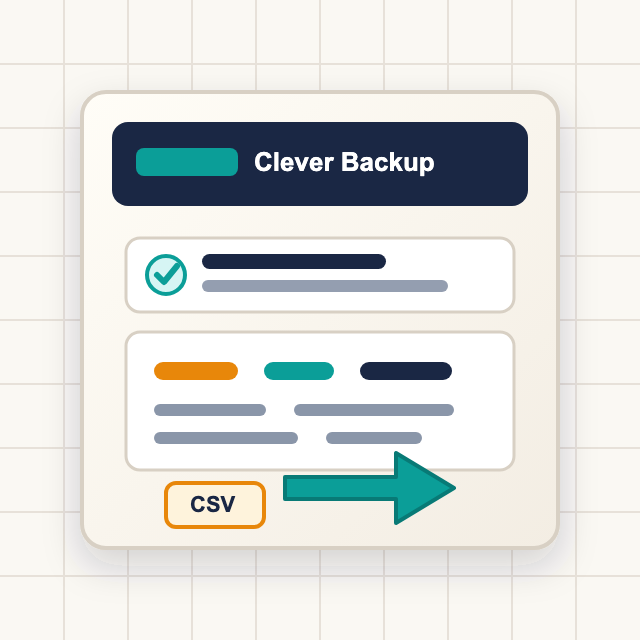
I wrote a small tool that reads that file and pulls out everything useful. You save your Clever page as an HTML file, drop it into the tool, and get a CSV with four columns: section, name, URL, and a notes field that flags any link that goes through Clever’s SSO system. The whole thing runs in your browser. Nothing is uploaded anywhere.
The SSO flag matters. Some apps on your Clever page don’t actually have a direct URL. They run through a Clever authorization flow, which handles your login automatically as long as your account is active. Once your account closes, those links just redirect you to a dead end. The CSV tells you which ones they are so you can track down the direct login pages at your new district instead of being surprised later.
In my case, things like the Raspberry Pi pathways and the Digital Passport games had clean direct URLs that will work from any computer. CodeMonkey and Khan Academy went through Clever SSO, which means I’ll be setting those up fresh wherever I land next.
Five Years of Links, in a Spreadsheet
When I ran my own page through the tool I ended up with 38 rows across seven sections: Templates, Digital Citizenship, Coding, Digital Breakout Rooms, Parts of a Computer, Lego Wall, and Newly Added. Looking at that list in a spreadsheet was a strange experience. It was small in a way that felt wrong for five years of work, and at the same time it was more organized and complete than anything I’d kept elsewhere.
The “Newly Added” section had three apps in it that I had set up but never actually launched with students. I remembered adding them. I remembered meaning to build a unit around them. That section was basically a to-do list that I never got back to, which is probably true of every teacher’s Clever page.
That’s the thing about having it in a CSV. You can actually look at it. You can sort by section, figure out what you used and what you didn’t, decide what you want to bring to a new context and what was specific to this school. It turns five years of accumulated decisions into something you can actually think about.
Clever Was Just the Beginning
Once I started thinking about what lived on my Clever page, I couldn’t stop thinking about everything else I had built inside school accounts over five years.
The thing is, teachers accumulate resources in a lot of places. And most of those places are tied to an account that closes when you leave. Clever is the most obvious one because it’s designed around your curated list of tools and you notice immediately that there’s no way out. But it’s not the only place your work is quietly waiting to disappear.
Chrome bookmarks. If you’ve been using Chrome with your school Google account as the active profile, your bookmarks are synced to that account, not your personal one. That’s five years of “I’ll come back to this” folders, professional development resources, curriculum sites, tools you found and meant to use. When the account closes, they’re gone. Before you leave, open Chrome, go to Bookmarks > Bookmark Manager, click the three-dot menu in the top right, and choose Export Bookmarks. You’ll get an HTML file you can import into any browser or personal Chrome profile. It takes about thirty seconds.
Saved passwords. This one surprised me when I thought it through. If you’ve ever let Chrome save a password while you were signed into your school account, that password is stored in your school Google account, not locally on your machine. You might not even realize which passwords went where. To find out, go to Chrome Settings, then Autofill, then Password Manager. There’s an export option that downloads everything as a CSV. Save it somewhere secure, because it is obviously sensitive. But the alternative is losing access to every account you set up during your time at that school and can’t remember the password for. Go through the list, update the accounts that matter to use your personal email address, and export the rest as a reference.
Google Drive. If you created files in your school Google account rather than your personal one, those files are owned by the school. Some districts let you transfer ownership or download everything before your account closes. Some don’t give you much notice. It’s worth going to Google Takeout (takeout.google.com) while you still have access and downloading an archive of everything in your school Drive. Even if most of it is stuff you don’t need, the things you do need will be there.
Your school email contacts. This is the one teachers most often forget. If you’ve been emailing with parents, vendors, professional development contacts, or colleagues at other schools through your district email, those contacts are in your school account. Export them from Google Contacts before your last day.
None of this is complicated. It’s all stuff that takes a few minutes once you know to do it. The hard part is remembering to do it before your account closes, not after.
How to Back Up Your Clever Page Specifically
Go to your Clever Teacher Page and make sure all your sections have fully loaded on screen. Then press Cmd+S on Mac or Ctrl+S on Windows. When the save dialog appears, set the format to Webpage, HTML Only. Save the file somewhere you can find it.
Then go to the Clever Backup Tool on maker404.com, drag in your saved HTML file, and click Download CSV.
That’s it. Two minutes, start to finish.
If the tool says no links were found, the most likely cause is saving in the wrong format. “Webpage, Complete” saves the HTML plus a folder of supporting files. Either format actually works, but if you got the folder version, try re-saving and choosing “HTML Only” instead.
One thing to know going in: this captures your Teacher Page resource links, not your student app assignments or class configurations. Those live in a different part of Clever and would need to be documented separately. But if what you’re trying to preserve is the curated list of resources you’ve built over time, this is what you need.
The Thing I Wish I Had Done Sooner
I should have run this export at the end of every school year, not just when I started thinking about leaving.
A Clever Teacher Page is a living document. Links break. Apps you loved in September get discontinued by March. You add something during a conference and forget about it by the time you’d actually use it. An annual export would have given me a record of how my thinking evolved year over year, which would have been genuinely useful for my self-reflection process and for telling the story of what I built to a hiring committee.
If you’re not changing jobs right now, do the export anyway. Treat it like backing up your hard drive. It takes two minutes and you’ll be glad you have it.
Good luck to anyone else in the middle of the same kind of transition. Five years is a long time to build something. It deserves to come with you.