Maker Journal
Stop Downloading 30 STL Files One at a Time
A free Chrome extension that previews student STL files right inside Google Classroom. No downloads, no Tinkercad, no slicer needed.
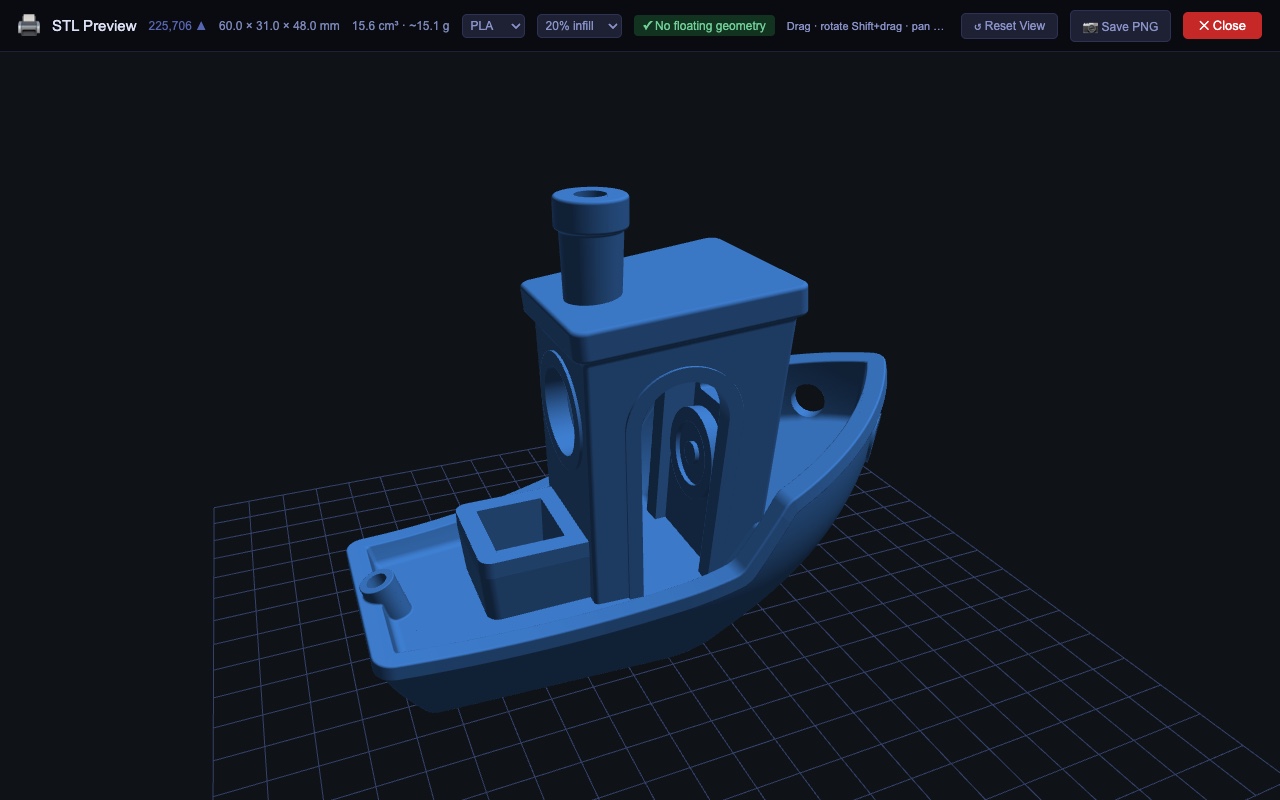
Every year my 3D printing unit ends the same way. Students design keychains in Tinkercad, export an STL, and turn it in through Google Classroom. Then I sit down to check about 30 of them.
Classroom doesn’t know what to do with an STL file. All it shows is “No preview available.” So the routine was: download the file, open it, look at it, close it, delete it, and do it again 29 more times. It’s a slow way to spend an afternoon, and I still missed problems that only showed up once the printer was running.
So I built a fix for my own grading, and I’m sharing it because I doubt I’m the only one with this problem.
What it does
STL Viewer for Google Classroom is a free Chrome extension that adds a View in 3D button right under that “No preview available” message. One click opens a full-screen 3D viewer in your browser. Drag to rotate, Shift+drag to pan, scroll to zoom. Nothing gets downloaded, and you don’t need Tinkercad or a slicer.
Models sit on the grid the way Tinkercad would print them, so a standing model stands up and a flat keychain lies flat.
Catching print failures before they happen
The feature I use most is the floating geometry check. It runs the moment the viewer opens, and the toolbar shows either a green “No floating geometry” or an orange “Floating geometry detected.”
If you’ve taught this unit, you know the classic failure: a student sets letters slightly above the keychain plate, and the print comes out as a plate and a pile of spaghetti. Now I see it before anything goes to the printer.
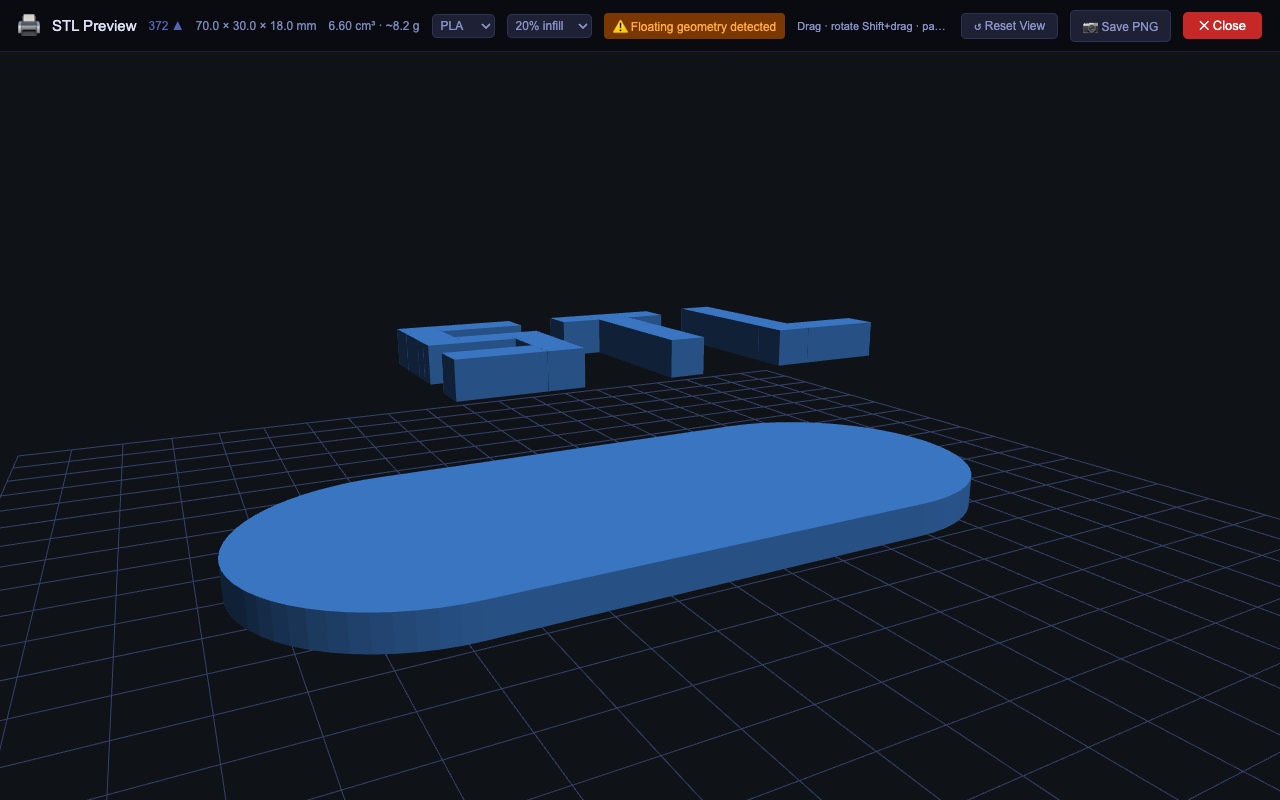
Lettering that is inlaid in the body, or parts nested inside it, are not flagged, because those print fine. In my own testing, an early version wrongly flagged 6 of 41 real student files. After I fixed that, none of those 41 were flagged. It isn’t perfect. It can’t see a part floating inside a hollow body, for example. Think of it as a second pair of eyes, not a replacement for yours.
The toolbar also shows the size in millimeters (so you can check it fits your printer) plus the volume and an estimated filament weight for PLA or PETG at 10% to 100% infill. That weight is a rough estimate, and your slicer’s number will differ.
Feedback for students
Save PNG exports the current view, toolbar info included, as an image named after the student’s file. Sending a kid a picture that says “these letters are floating, fix it before we print” beats a vague comment every time.
Planning the print run
There’s also an optional Print checklist, off by default. Turn it on from the extension’s toolbar icon, and a button appears on an assignment’s Student work page. It opens a one-page printable list of every student and their STL file, grouped by the color named in the file. It’s a guess based on the filename, so each row has a dropdown to correct it. That makes it easy to run all the blue prints together.
One caution: it reads Classroom’s current page layout, so if Google changes that page, it may stop working until I update it.
Privacy
This matters for anything touching student work. There is no server and no analytics. The file is loaded into your browser’s memory using your existing Google session, drawn on screen, and released when you close the viewer. It’s never written to disk. The only things the extension saves are the two on/off switches for the optional features, plus any PNG you choose to export. The Print checklist reads names in your browser only and never saves or sends them anywhere. The full privacy policy spells it all out.
How to get it
I’m working on getting it into the Chrome Web Store, and I’ll update this post when it’s live. Until then it’s free and open source, and installing it by hand takes about two minutes:
- Download
stl-viewer-extension.zipfrom the Releases page and unzip it. - Go to
chrome://extensionsand switch on Developer mode (top right). - Click Load unpacked and pick the unzipped folder.
- Open a Classroom assignment with a submitted STL and look for the View in 3D button under “No preview available.”
Because it isn’t in the Web Store yet, it won’t update itself. To update, download the new zip, replace the folder, and click the refresh icon on its card in chrome://extensions.
A few honest limits: it works only with STL files (not OBJ or 3MF), only in Chrome, and only on Google Classroom and Drive pages.
The code is on GitHub. If something breaks, or you want a feature, open an issue there. I built this around my own classroom, so I’d love to hear how it works in yours.